Docs · Content
Writing and editing
Articles
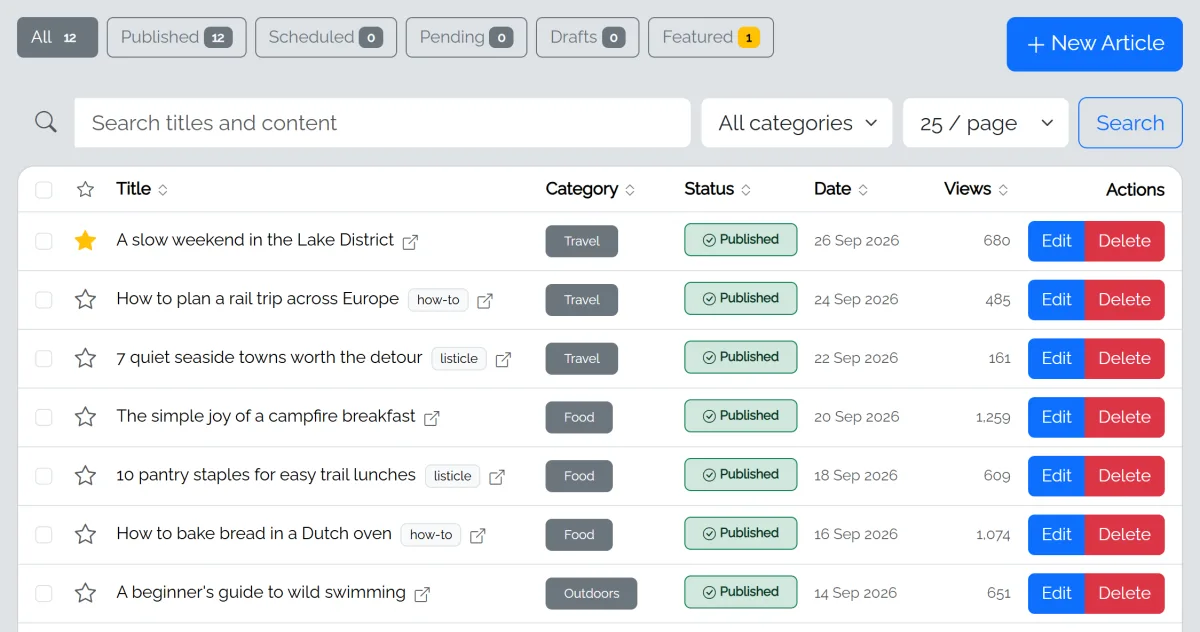
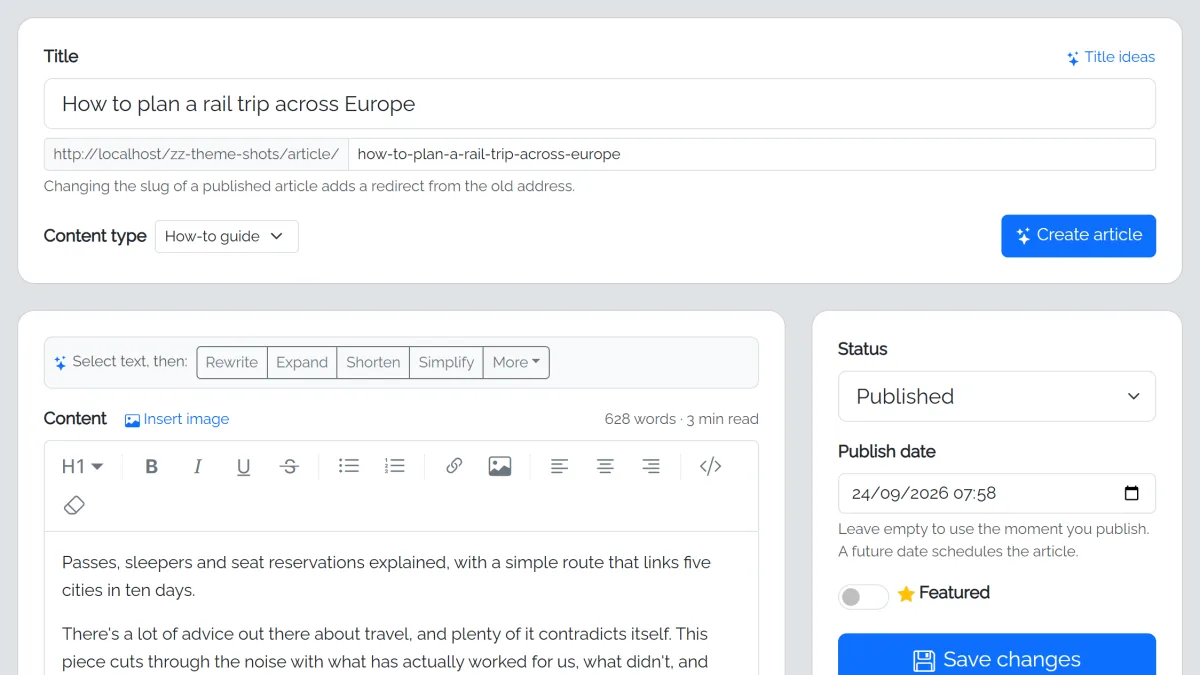
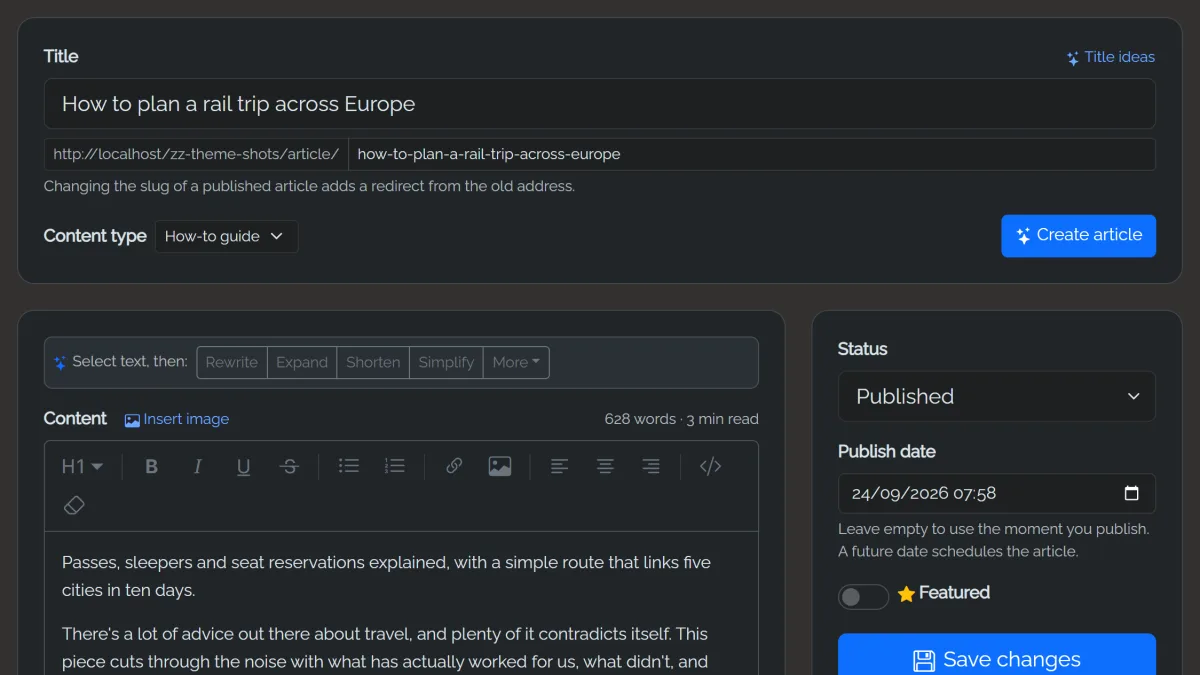
In Articles, click New article or open one to edit it.
The AI buttons below appear once you've added an AI key in Settings → AI. Without one, everything else works by hand.
- Choose the content type under the title (Article, Listicle, Review or How-to guide). Title ideas and Create article follow it: a listicle gets numbered titles and a numbered list, a review gets pros, cons and a verdict, and a how-to guide gets numbered steps.
- Create article (next to the content type) opens Create article with AI: add a main search phrase and anything specific you want covered (both optional), then click Write it. The draft lands in the editor for you to change. Type a title first.
- Change what each content type contains (sections, length, title style) in Settings → Article templates. Reset to default brings back the built-in version.
- Select any text in the editor to Rewrite, Expand, Shorten or Simplify it. More has Friendlier tone, More professional and Fix spelling and grammar.
- Main search phrase (under Search appearance) is what people type into Google to find the article. The AI tools use it; Create article and AI Autopilot fill it in for you.
- The small AI links next to the summary, search title and search description fill those in from the article.
- Status: Draft (only you), Pending (waiting for review), Published. A future publish date schedules the article.
- Featured articles appear in the home page spotlight in most themes.
- History keeps every saved version, including AI changes, so you can always go back.
Pages
Pages are for standalone content: About, Contact, legal pages. One page can be your home page instead of the latest-articles list.
Placeholders that fill themselves in
Pages can use these, filled in when the page is shown:
| Placeholder | Becomes |
|---|---|
{{owner_name}} | Site owner (Settings → General) |
{{contact_email}} | Your public contact email, as a link |
{{site_name}} | Your site name |
{{site_url}} | Your site's address |
{{country}} | Your country or region |
{{last_updated}} | The date the page was last saved |
{{year}} | The current year |
Common template brackets such as [contact email] or [date] are turned into these automatically when you save. Anything else in brackets, like [Google Analytics], is a choice only you can make; the page editor lists what's left.
Categories
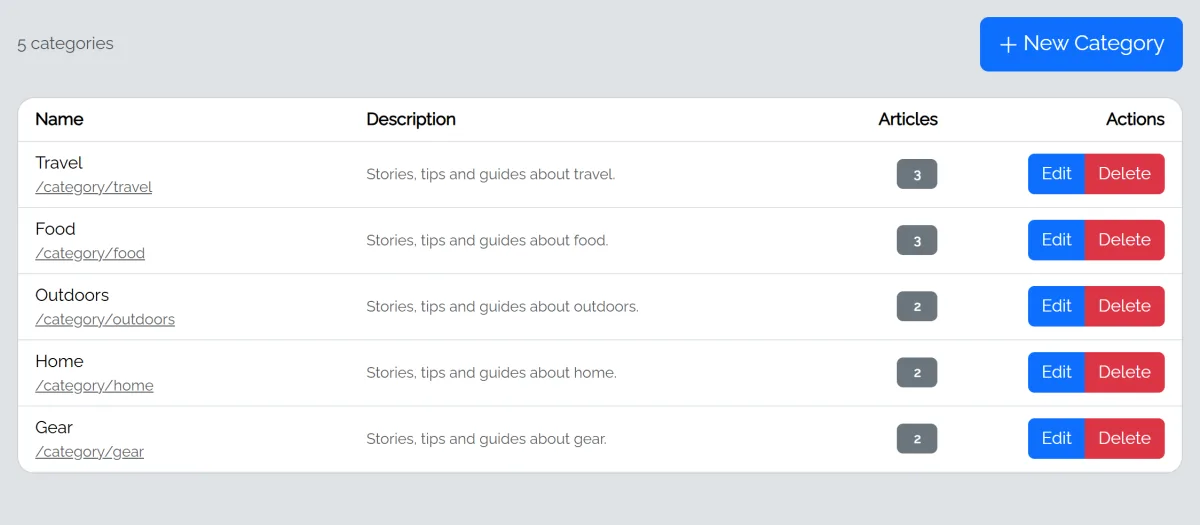
Categories group articles and each gets its own page. Deleting a category lets you move its articles to another one.