

Docs · Content
Themes and appearance
Choosing a theme
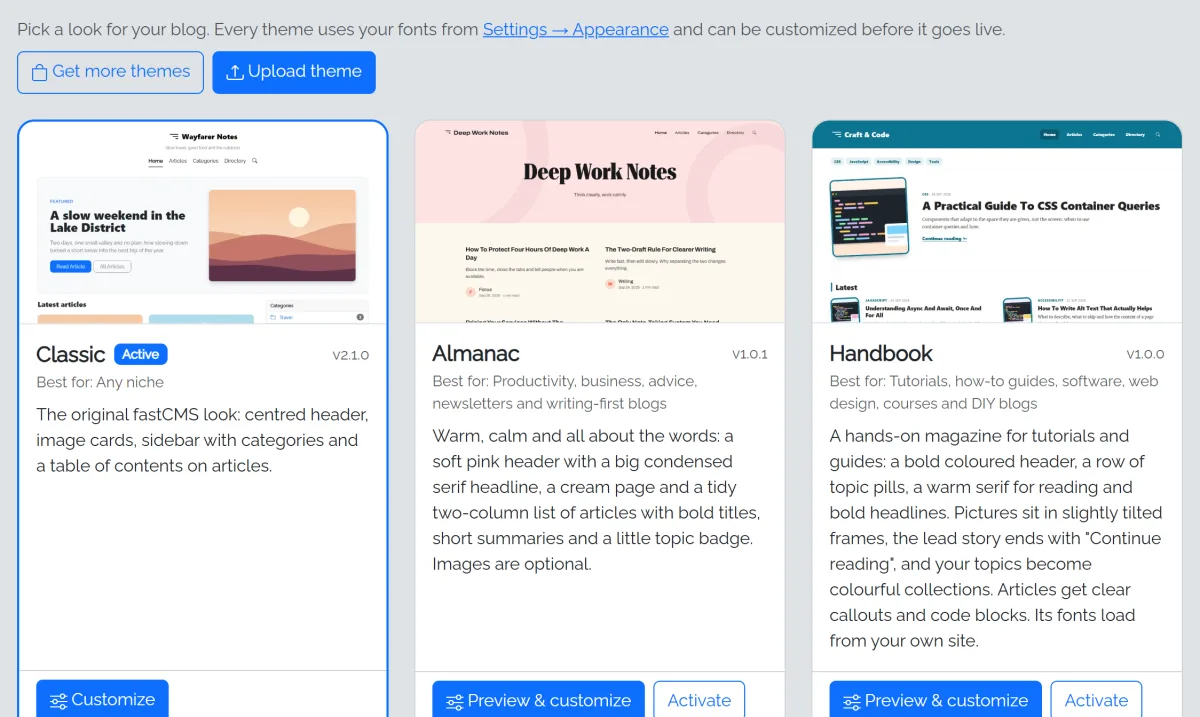
Themes has six designs:
| Theme | Best for |
|---|---|
| Classic | Any niche: image cards, sidebar, table of contents |
| Magazine | Busy sites with lots of articles |
| Minimal | Personal and expert blogs, long reads |
| Reviewer | Reviews and buying guides: coloured pros, cons and verdict boxes |
| Wellness | Health, parenting, lifestyle: soft and calm |
| Nightfall | Tech, gaming, entertainment: dark first |
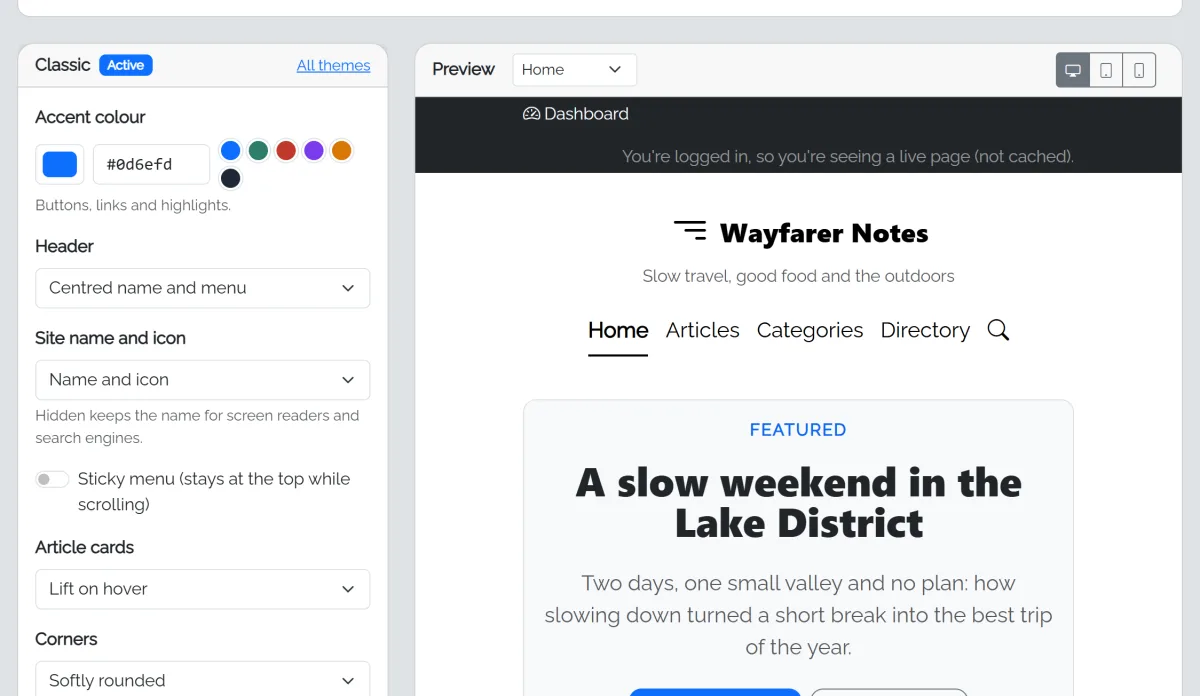
Click Preview & customize to see your own site in the theme before visitors do. Change the accent colour, header style, site name and icon, sticky menu, cards, corners, page width and more, on desktop, tablet or phone sizes. Save keeps your choices; Activate makes the theme live.
More themes
Find more themes at fastcms.net/themes. To install one:
- Download the theme's .zip file. Don't unzip it.
- In Themes, click Upload theme and choose the zip.
- It appears with the other themes, marked Uploaded. Click Preview & customize to try it, then Activate.
Uploading a newer version of the same theme updates it and keeps your settings. You can delete an uploaded theme you're not using with the bin button on its card. fastCMS updates never change uploaded themes. Only install themes from sources you trust.
Fonts and text size
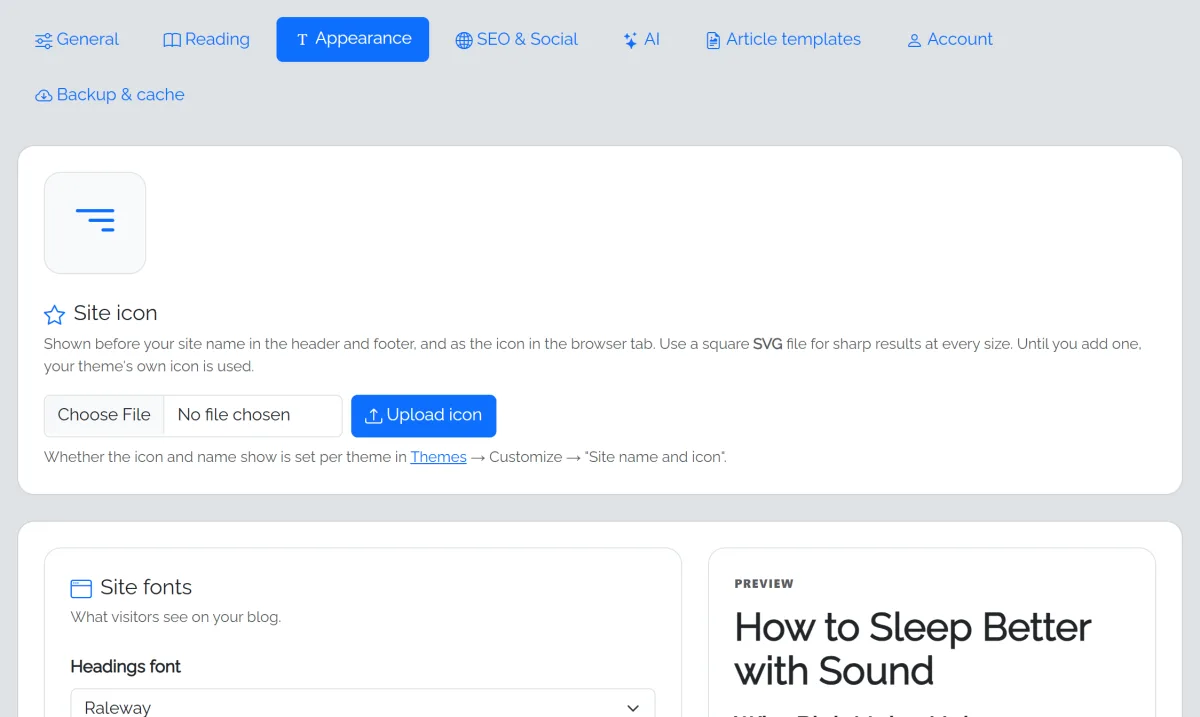
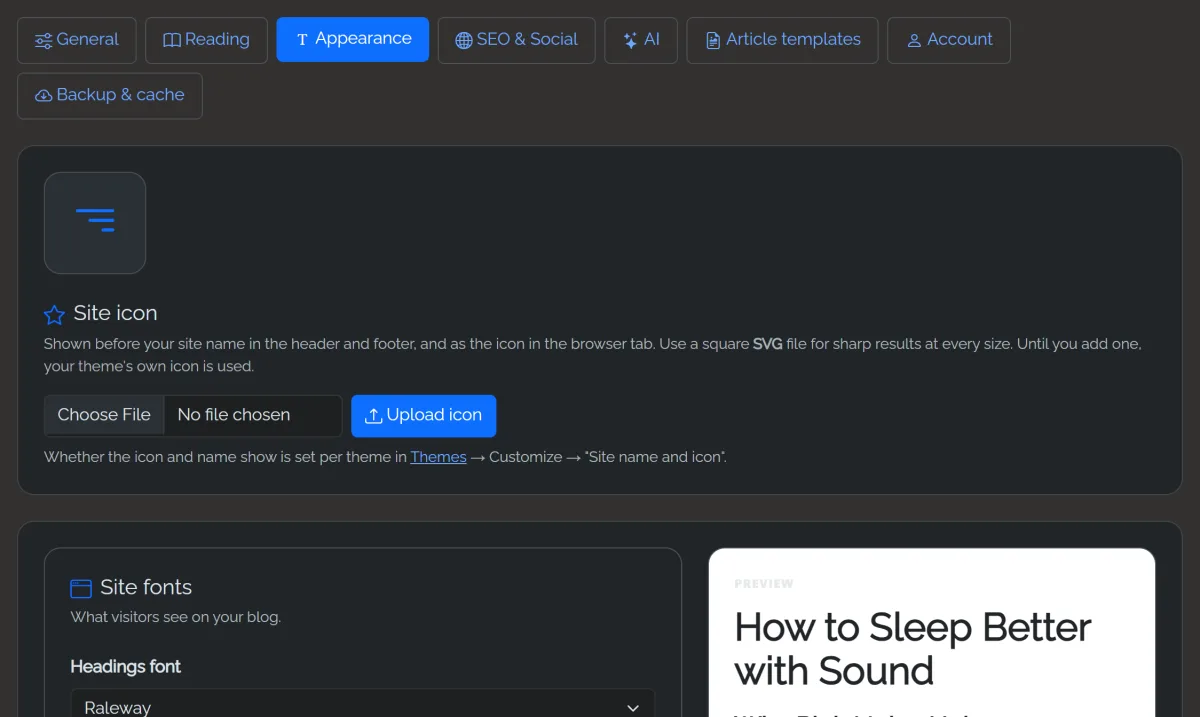
Settings → Appearance sets the headings font, body font and text size for the site, and a separate font for the admin, with live previews.
Dark mode
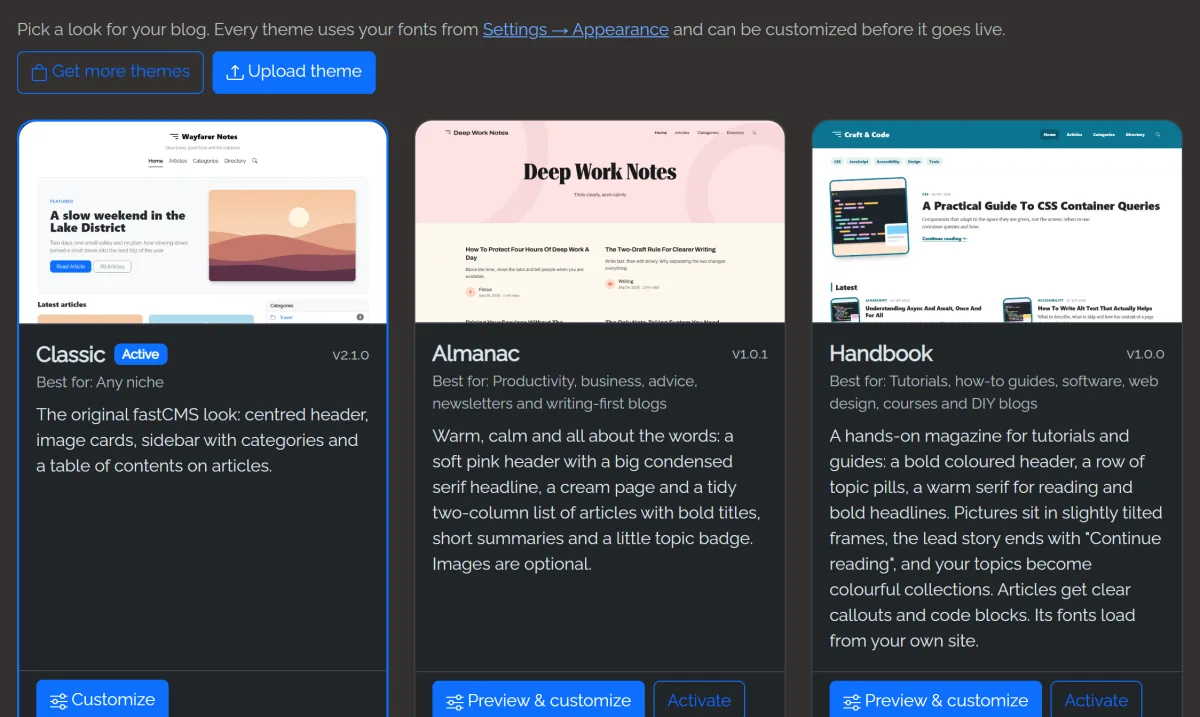
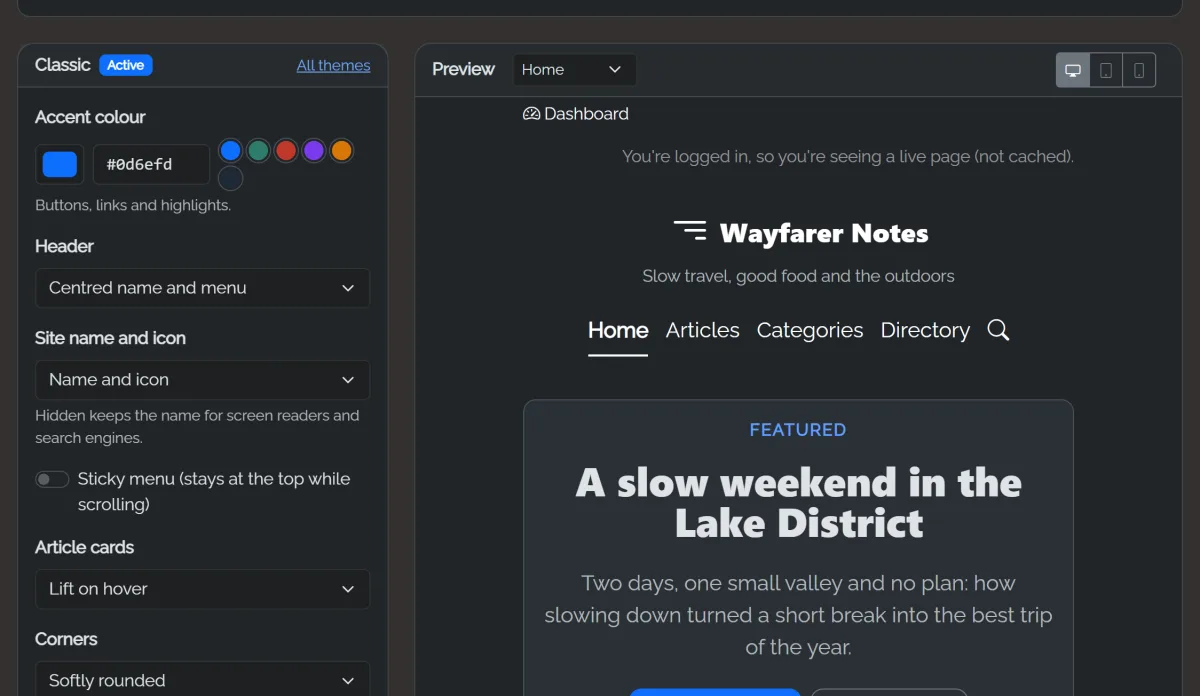
Visitors can switch between light and dark with the button in the corner. Each theme sets what new visitors see first.
Editing theme files
If you change a built-in theme's files directly, updates will replace your changes. Copy the theme's folder to a new name in themes/ first and edit the copy.