

Docs · Content
Images
Everything lives in the Media library. Images are resized and converted to modern WebP automatically, in several sizes, so pages load fast on phones.
Three ways to add images
- Upload from your computer (JPEG, PNG, WebP, GIF).
- Free stock photos from Unsplash or Pexels. Add a free key for either in Settings → AI, then search from the Media page or the article editor. Photographer credit is saved with the image.
- AI images made from a description with fal.ai (about $0.003 to $0.04 each, depending on the model). Add a fal.ai key in Settings → AI and top up a little credit on fal.ai first.
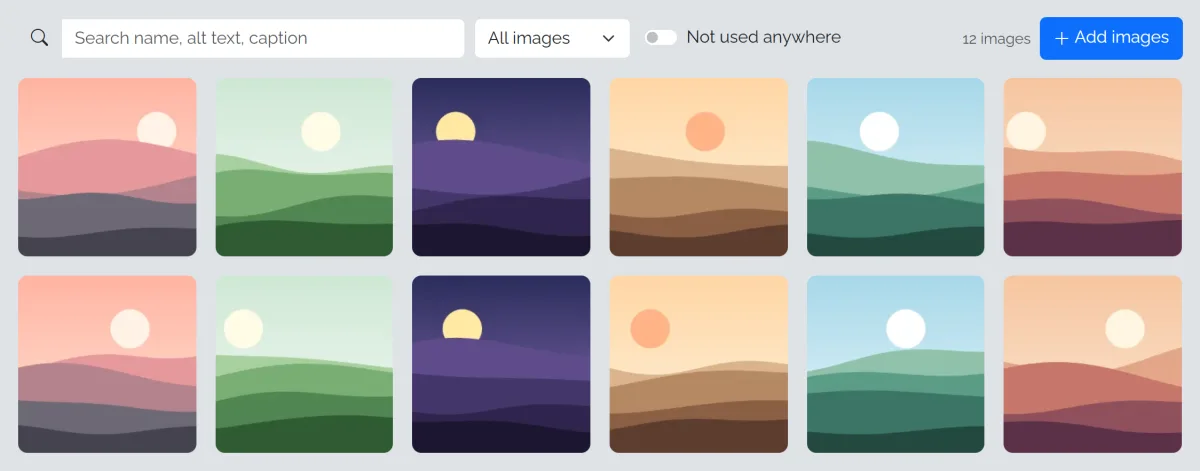
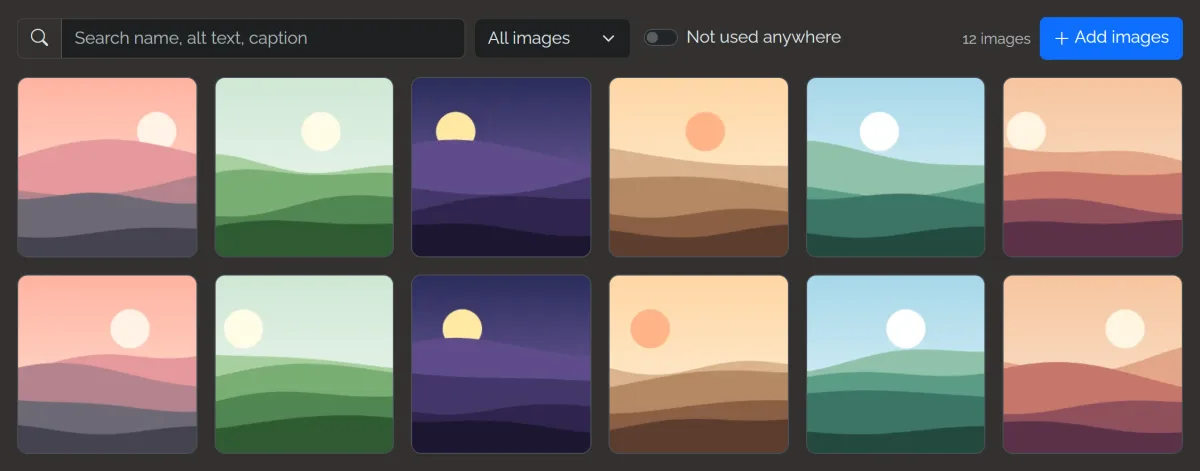
A consistent look
The image style in Settings → AI (for example soft natural light, muted colours, photographic) is added to every AI image so they look like one set. It only sets the look (lighting, colours and mood); what's in the picture always comes from your description. AI Autopilot suggests one when it plans your blog.
Alt text
Alt text describes an image for screen readers and search engines. fastCMS writes it for you with AI; you can edit it in the Media library.
Cleaning up
Switch on Not used anywhere in the Media library to see images that no article, page or banner ad uses. Tick the ones you don't need (or Select all shown) and click Delete selected. Images that are in use are never deleted this way.
Featured images
Each article can have one featured image, shown on cards and at the top of the article. AI Autopilot adds one to every article if you choose AI or stock images when building.
Your profile picture
In Settings → Account you can upload a picture or create one with AI from a description. It shows in the admin and next to your name on articles.