Docs · Earn & grow
Growth, Google and Bing
The Growth page shows how Google and Bing see your articles and helps you improve the ones that are close to doing well. Connect either one, or both.
Connecting Search Console
fastCMS reads Search Console through a service account, a small robot Google account that you give read-only access. It takes about five minutes:
- Make sure your site is added and verified in Google Search Console.
- In Google Cloud Console, create a project (any name) and enable Google Search Console API (search for it under APIs & Services → Library).
- Go to IAM & Admin → Service Accounts → Create service account. Give it any name; no roles are needed.
- Open the new account, go to Keys → Add key → Create new key → JSON. A file downloads.
- Back in Search Console, open Settings → Users and permissions → Add user. Paste the service account's email (it ends in
iam.gserviceaccount.com; it's theclient_emailin the file) and choose Restricted. - Open the downloaded file in a text editor, copy everything, paste it on the Growth page and click Connect. If the account can see more than one property, pick the one for this site.
fastCMS then fetches your numbers once a day. Google's figures run about three days behind, and new sites can take a few weeks to show much.
Connecting Bing Webmaster Tools
Bing also powers search in Windows, Edge, Copilot, DuckDuckGo and Yahoo, so its numbers are worth having alongside Google's. fastCMS reads them with an API key (read-only). It takes about five minutes:
- Sign in at Bing Webmaster Tools. A Microsoft, Google or Facebook account works.
- Add your site:
- Quickest: choose Import from Google Search Console. If Google already has this site, Bing copies it across, verified.
- Or type your site's address under Add your site manually and choose the HTML Meta Tag method. Copy the tag Bing shows (it starts
<meta name="msvalidate.01"), paste it into the Bing verification box on the Growth page and click Save. fastCMS adds it to every page. Then click Verify in Bing. - In Bing, open Sitemaps → Submit sitemap and paste your sitemap address:
https://your-site.com/sitemap.xml(the Growth page has a Copy button). - Click the gear icon at the top right → API access → API Key → Generate API Key, and copy the key.
- Paste the key on the Growth page and click Connect Bing. If the account has more than one verified site, pick the one for this site.
fastCMS then fetches Bing's numbers once a day. Bing reports in weekly batches and runs a few days behind, and a newly added site can take up to a week to show anything.
Google, Bing or both
When both are connected, the Overview, Performance and Opportunities tabs have a Google · Bing · Both switch. Both adds the clicks and impressions together and averages the positions (weighted by how often each engine showed the page), so Opportunities and the AI fixes use the combined picture. The Overview also shows each engine's share of the clicks and a trend line for each.
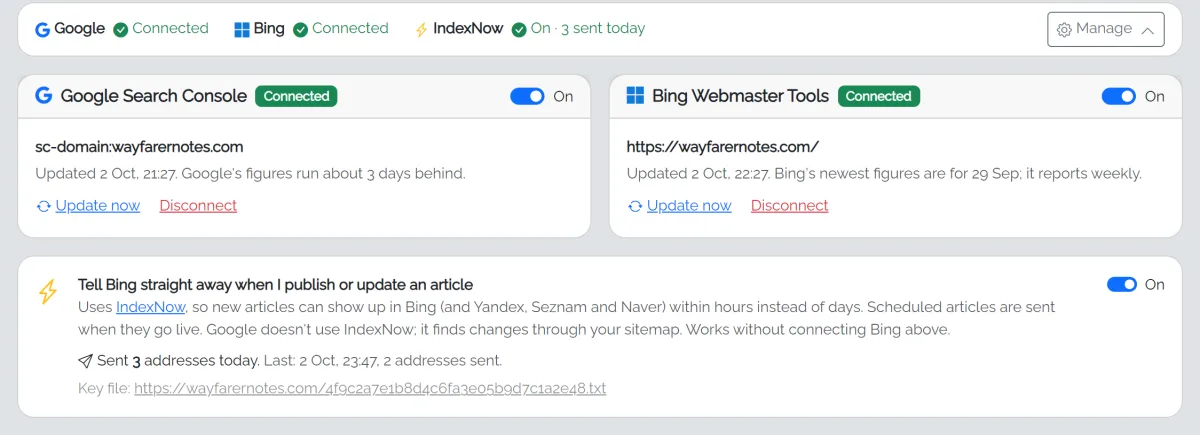
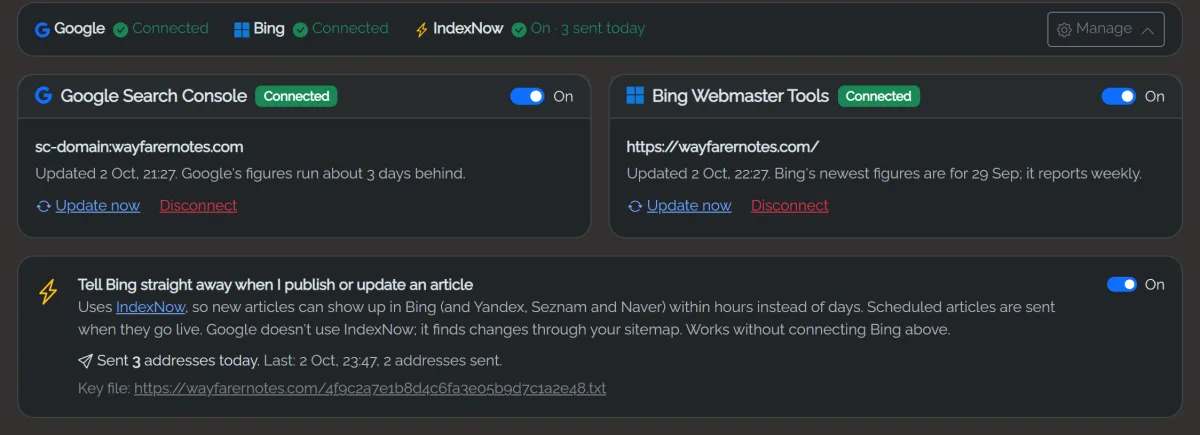
Once something is connected, the connections fold into one line at the top of the Growth page, showing whether Google, Bing and IndexNow are on, so the numbers and articles stay in view. Click Manage to open them.
Each connection has an On/Off switch. Off hides that engine's numbers and stops updating them, but keeps the connection so you can switch back any time. Disconnect removes the key and the stored numbers.
IndexNow: tell Bing straight away
Turn on Tell Bing straight away when I publish or update an article on the Growth page. fastCMS then uses IndexNow to tell Bing (and Yandex, Seznam and Naver, which share it) the moment an article or page is published, updated or deleted, so new articles can appear within hours instead of days.
- It works without connecting Bing Webmaster Tools.
- Changes are sent in small batches a minute or so after you save. Scheduled articles are sent when they go live.
- fastCMS creates a key file at your site's address (shown on the Growth page) that search engines check to make sure the notices really come from your site.
- The Growth page shows how many addresses were sent today and the last result.
- Nothing is sent while the site runs on your own computer or a private address, or while Hide this site from search engines is on.
- Google doesn't use IndexNow; it finds changes through your sitemap.
The four tabs
- Overview: clicks, impressions, click rate and average position for the last 28 days against the 28 before, a trend chart, and your top pages.
- Performance: every article that shows up in search, best first, with its clicks, the change on the 28 days before, views, click rate and position. Click a column to sort by it, or find an article by its title. Click an article to see:
- its numbers in Google and in Bing, side by side;
- Position over time, a chart with a line for each engine (higher is better: 1 is the top of the results). fastCMS saves the numbers each time it fetches them, about once a day, so the chart fills in over the weeks after you connect. It keeps a point a day for 90 days, then one a week for two years;
- every search the article shows up for, with its position, clicks and views in each engine. Press the chart button on a search to chart that search on its own. Searches the article doesn't answer yet are marked Not answered yet;
- visits from each search engine that landed on the article, from your own Visitors numbers. Only Google and Bing share what people searched for: DuckDuckGo, Yahoo and others don't tell any website.
You can also get there from See searches in Opportunities, How it does in search in the article editor, or Searches and positions when Visitors shows a single article.
- Opportunities:
- Almost on page one: ranking 8 to 25. A refresh that answers more of the searches can lift them.
- Seen but not clicked: on page one but few people click. Usually the search title and description need work.
- Losing clicks: down 30% or more.
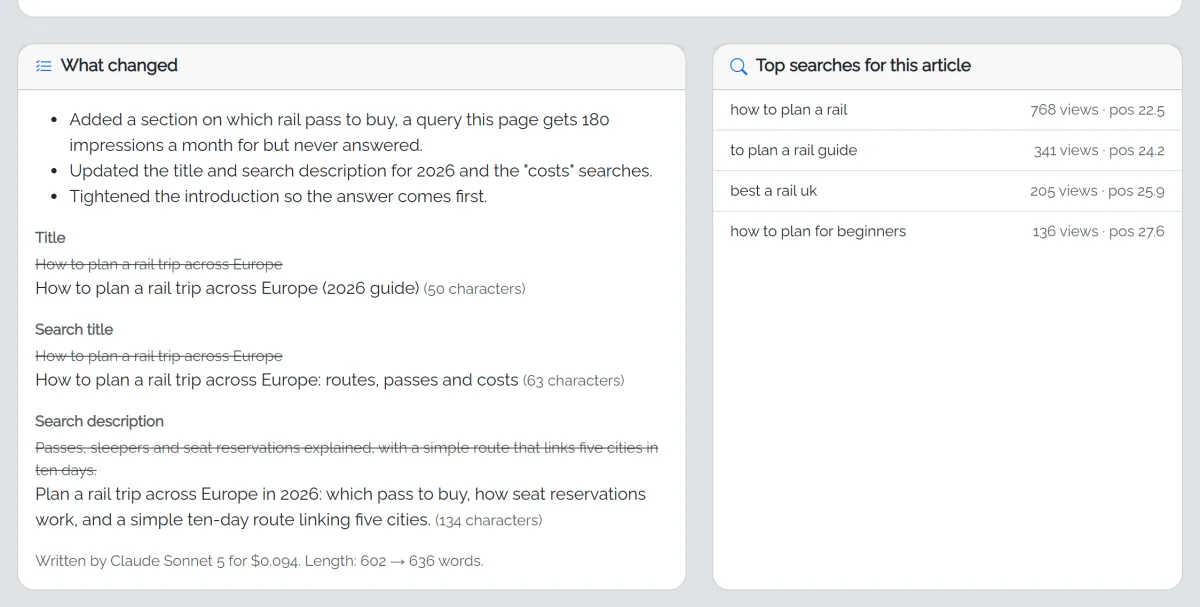
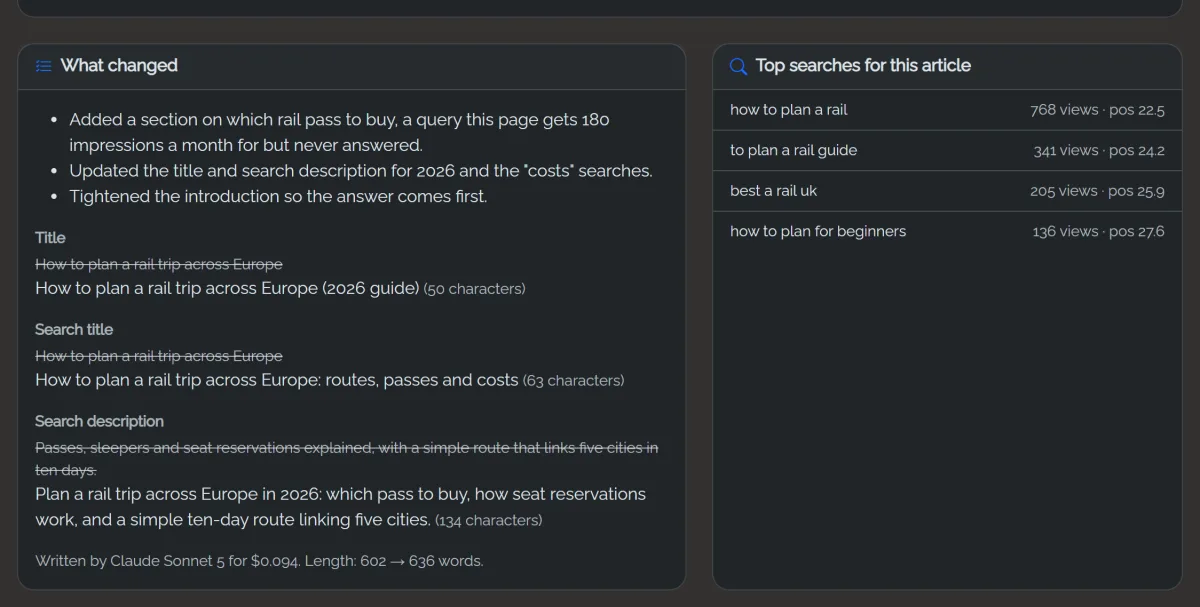
- One-click fixes: Seen but not clicked rows have ✨ Fix title & description (a new search title and description, saved straight away). Rows that show "searches not answered yet" have ✨ Answer N searches, which adds a short section answering exactly those searches. Each group has Fix all. Fixes appear under Recently fixed with AI with an Undo button, and a fixed row shows Fixed until the search numbers catch up (a few weeks). Review first and Refresh with AI write a suggestion you compare before anything changes.
- Content health (works without Google or Bing): articles not updated in a year, short ones, and those missing a featured image, a search description or internal links. Press ✨ Fix on an issue (or Fix all on an article, or Fix everything with AI) and the AI fixes it straight away: it works links into a sentence or two of related articles, adds a featured image or writes the search description. Each fix appears under Recently fixed with AI with an Undo button. Old and short articles use Refresh with AI instead, which writes a full new version for you to compare first.
Refresh with AI
Refresh with AI rewrites an article using the searches it really appears for, keeping all its links and images. Fix title & description only writes a better search title and description (very cheap).
Either way, you get a suggestion first: what changed and why, and the current and suggested versions side by side. Nothing changes on your site until you click Apply, and the previous version stays in the article's History.
Refreshed articles show an Updated date, which readers and Google both notice.
Once you apply a refresh, the article moves out of Opportunities into Recently refreshed with AI (click it to open). Google usually takes 2 to 4 weeks to notice the change, so it waits there for 28 days. If it still needs work after that, it comes back to Opportunities marked Refreshed, still needs work. A new search title and description only moves the article out of Seen but not clicked.